

Configure Multifactor Authentication and change the password
You have been provided with a new O365 account with is configured with Multifactor Authentication and you are required to change the password when you first login. There are several steps required to do this. This step-by-step tutorial will show you how.
Article Index:
IMPORTANT!
Please note the following prerequisites to following this tutorial:
- You must have been provided with a new account that requires Multifactor Authentication, and you are allowed to change the assigned password.
- You will be using SMS Authentication. This generates a 6-digit code which will be texted to your phone when you are prompted for it.
- If you wish to use a different Multifactor Authentication system (such as the Microsoft Authenticator App), you are free to do so. However, that setup is not covered by this tutorial, and it is not supported by your organization.
- When you change your password, you MUST use a unique, never before used password for your M365 account. Your obligation to your organization to keep your data safe requires that you not re-use a password that you have used for any other account.
Log in
These steps will help you log into your Microsoft account, setup your SMS Authentication with your phone and change your password.

Log into M365
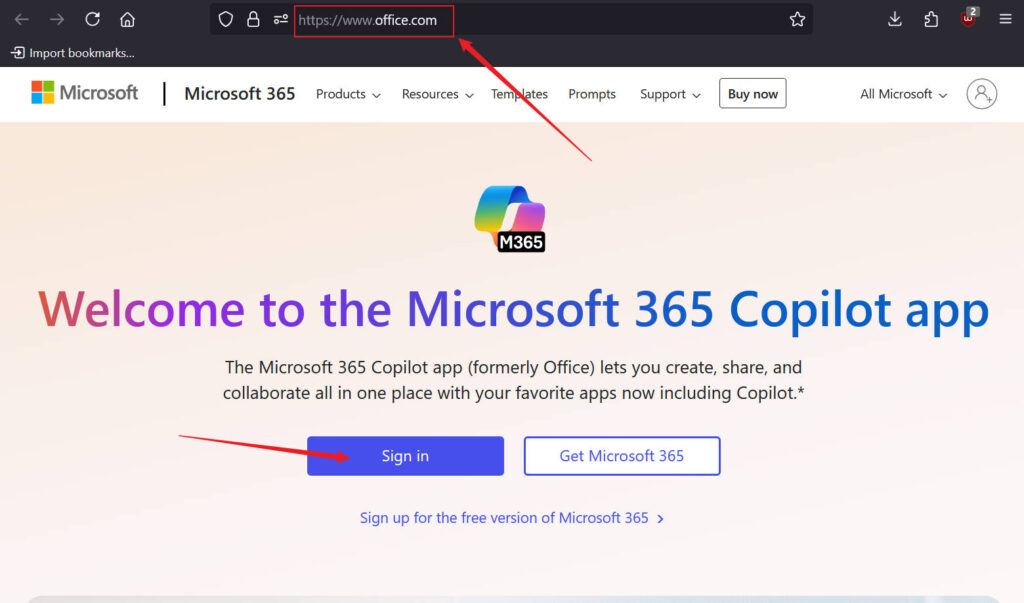
Open a browser directed to the following address: https://office.com
You will see the following welcome message. Click the “Sign in” button.

Click the image for a larger version.
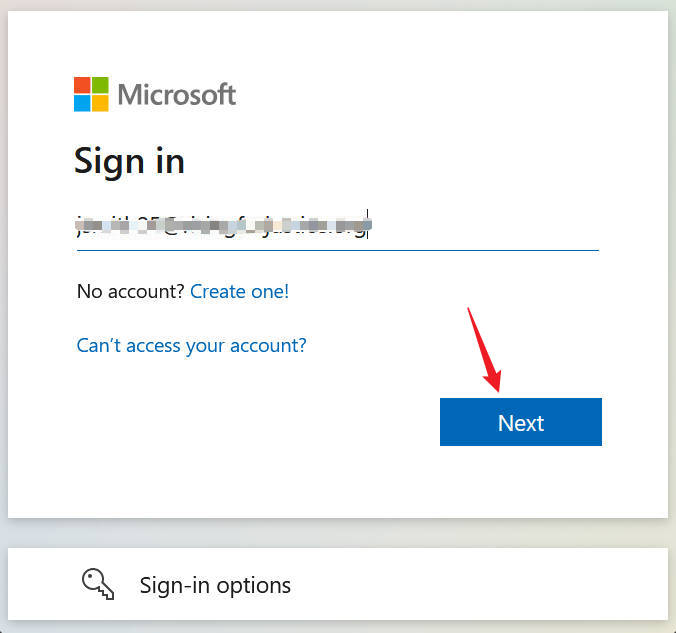
Enter your email address
When prompted to Sign in, enter your full email address, then click Next.

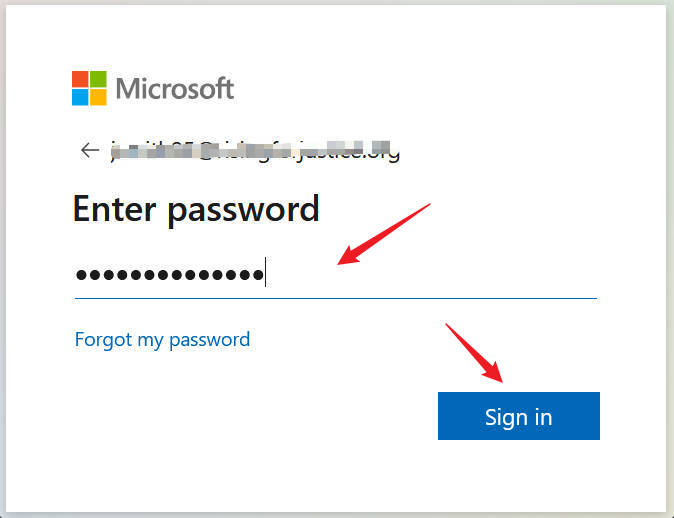
Enter your temporary password
Enter the temporary password you were provided. Then click Next.

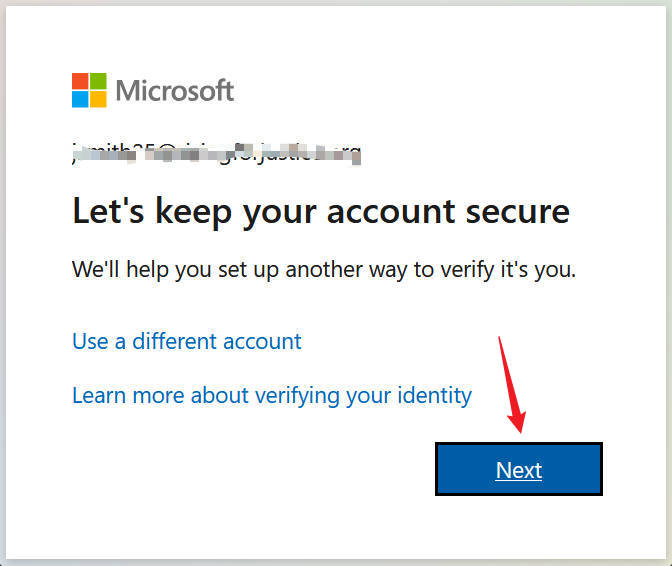
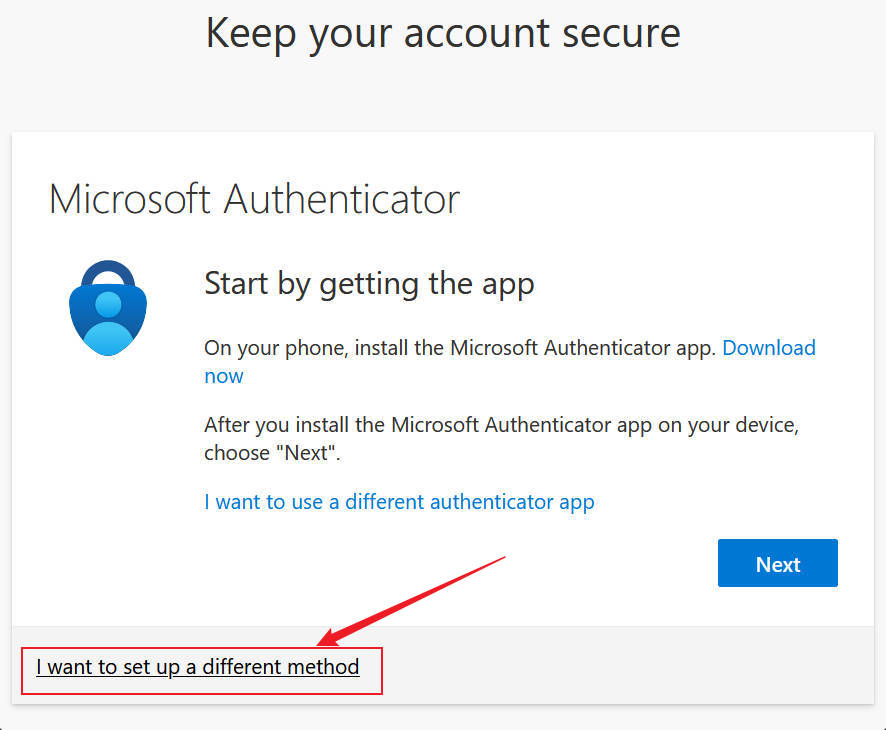
Allow Microsoft to ``Keep your account secure``
Microsoft will now help you configure Multifactor Authentication on your account to keep it secure. Click Next.

Select a ``different method`` to secure your account
In order to use SMS texts as your Multifactor Authentication system, please click the “I want to set up a different method” link.
NOTE: You are free to use a method other than SMS, but we will not be able to support you with the other methods.

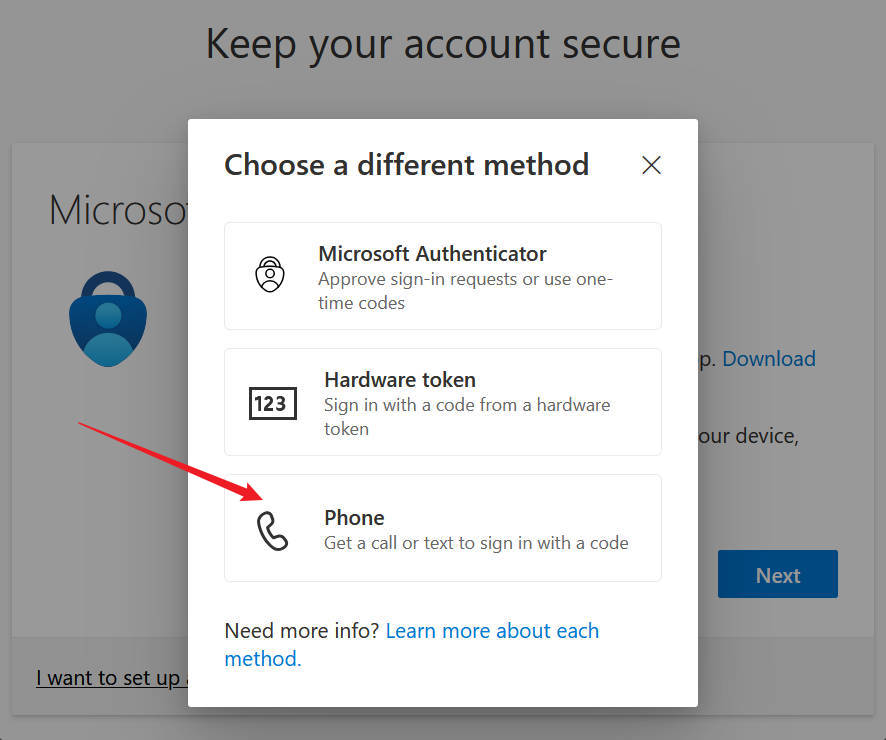
Select the SMS text method
Select “Phone” as your Multifactor Authentication method.

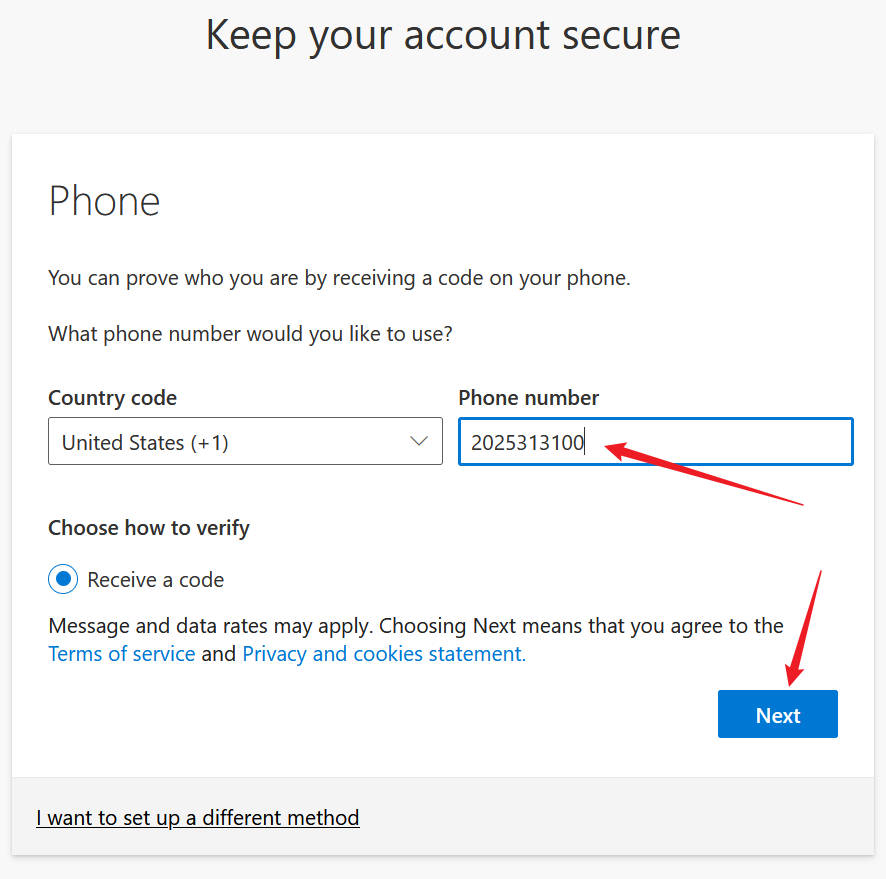
Enter your cell phone number
Enter the phone number you wish to receive the SMS texted code and then click Next.
Note: the phone must be able to receive texts, and you agree to accept any charges for receiving these texts.

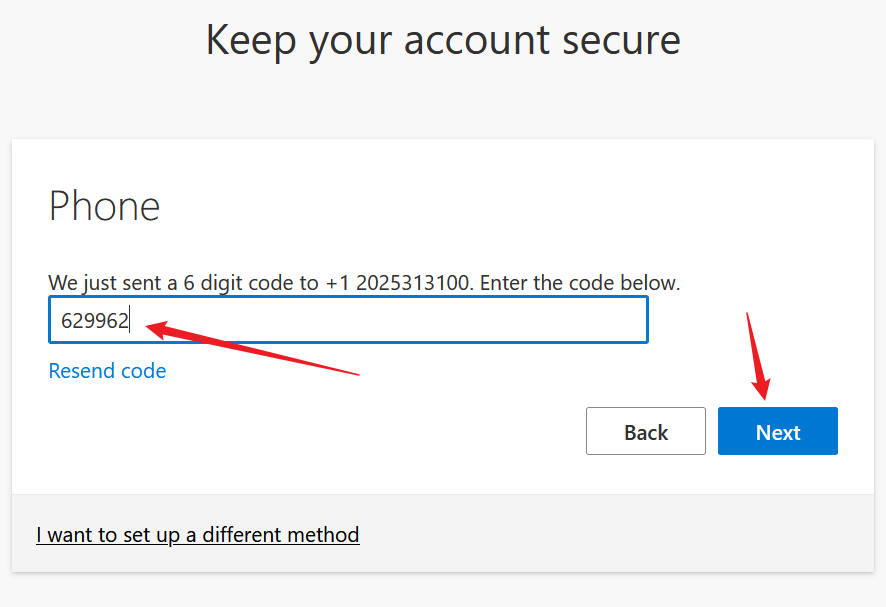
Enter the code texted to your phone
You should immediately receive a 6-digit code texted to your phone. Enter the code and then click Next.

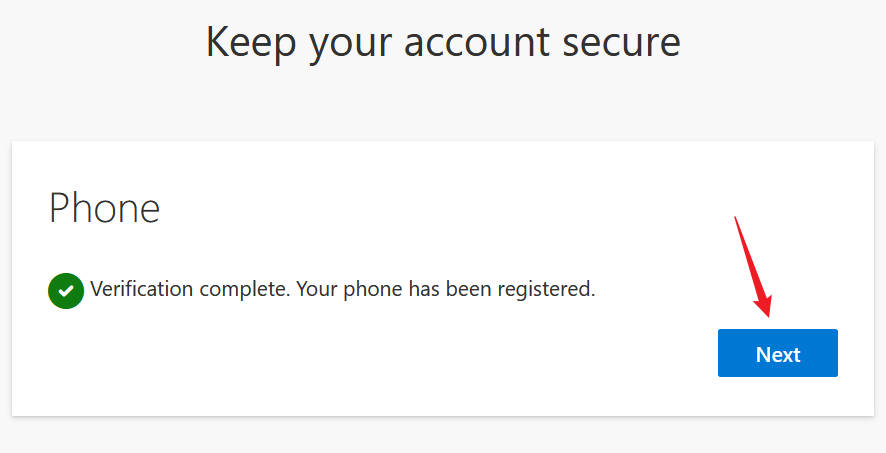
Verification is complete
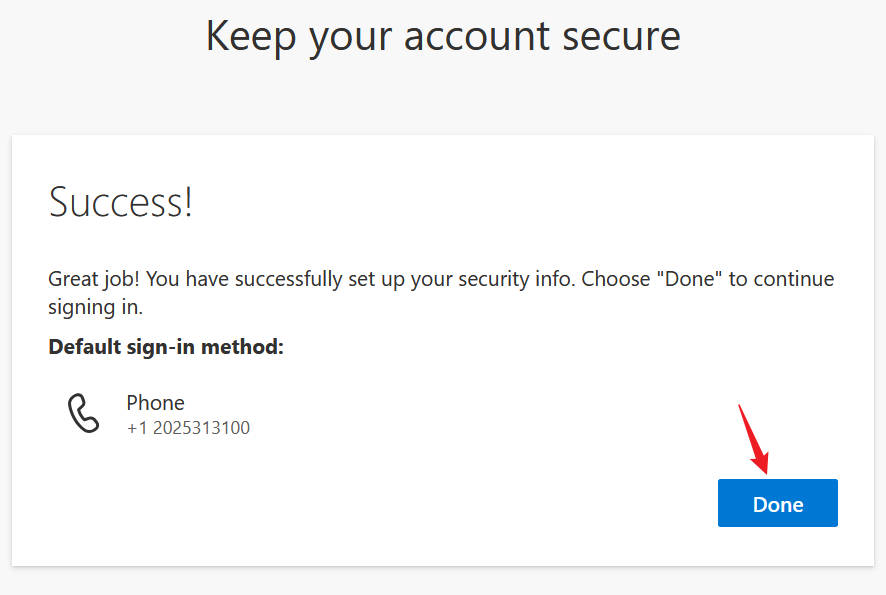
Your verification of the phone is complete. Please click Next, and then click Done on the final page.











Change your password
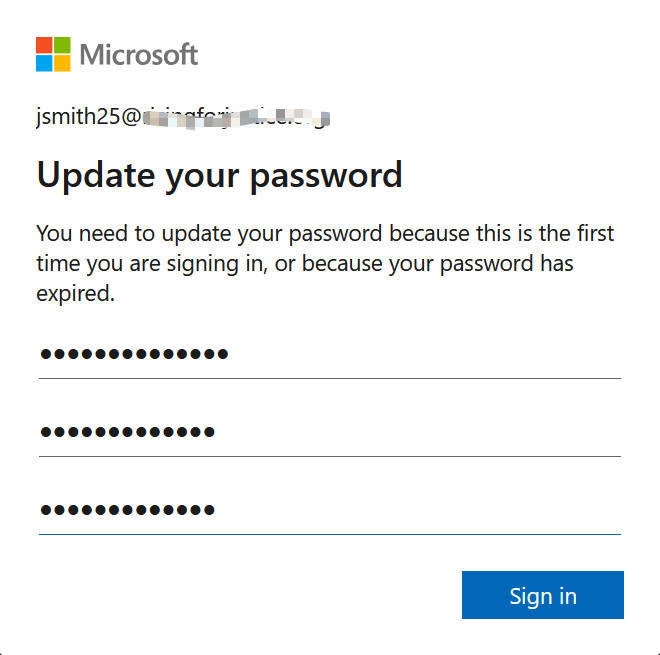
If you have been provided with a temporary password, you will be prompted to change it at this point.
Change your password
Update your password by entering your temporary password once, and your new password twice.

Log into your account and access your Apps
Once you have configured Multifactor Authentication and changed your password, you will be logged into your account. You can then access your Apps, such as Outlook (email), Word, etc.
You can do so after you bypass CoPilot. Microsoft has arranged things so that when you login you are first confronted by CoPilot (their AI system).
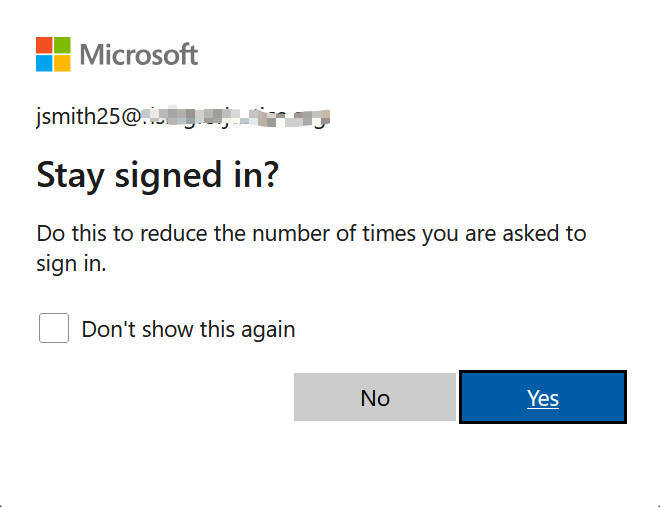
Would you like to stay signed in?
If you are working on your own computer, you may wish to “Stay signed in”. This will save some of your information, making it quicker to sign in again later.
Please DO NOT select to stay signed in, if you are accessing Microsoft from a shared computer.

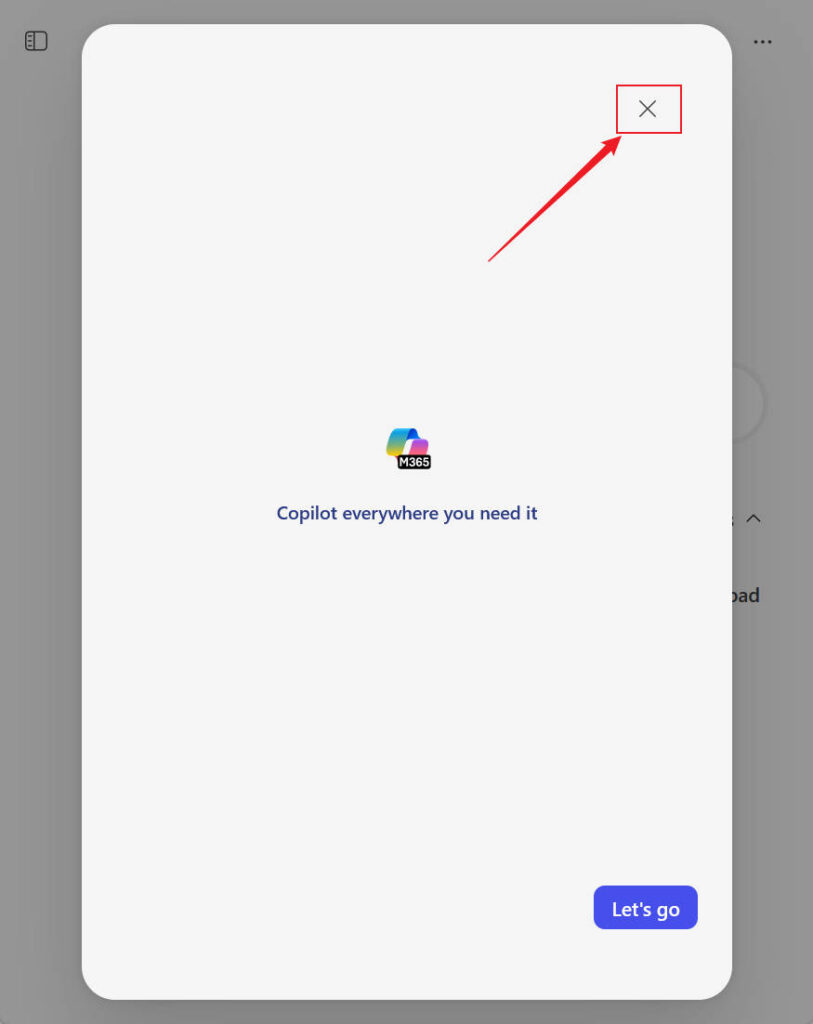
Bypass the CoPilot splash screen
Since Microsoft thinks that their CoPilot system is the best thing since sliced bread, they assume you will want to access it first…
If, instead, you have real work to do, you will want to bypass the splash screen by clicking the “X” in the upper right corner.

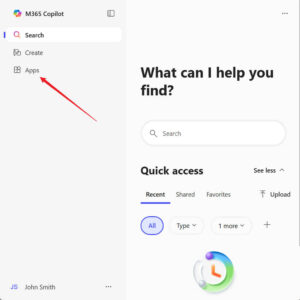
Select the Apps link
To access the Microsoft Apps (including your email, OneDrive, SharePoint, etc.), click the “Apps” link on the left.

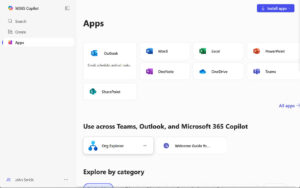
Select your desired App from those presented
You may now select the App you would like to use.

Log out of your account
Once you have finished using your Microsoft account, log out.
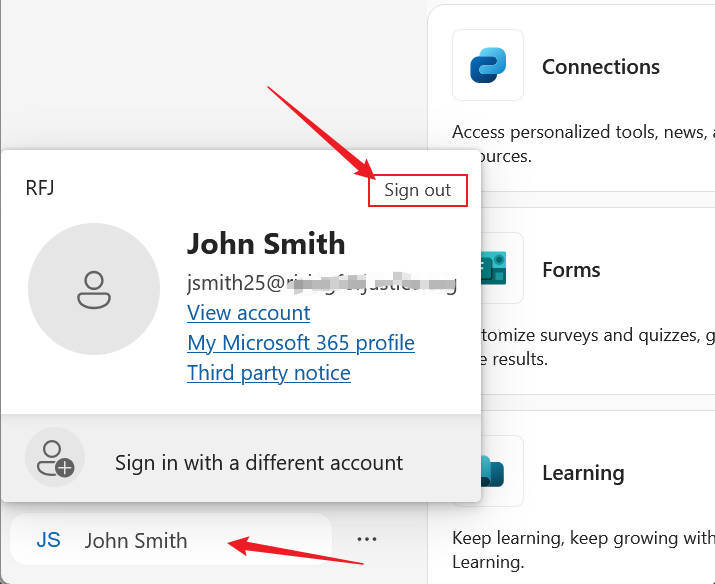
Sign out of your Microsoft account.
Click your name at the bottom left of the page. This will bring up a small menu. From the menu, click the “Sign out” link.

FAQs:
I followed the steps by I was not prompted to change my password?
Your account may not have been configured to force you to change your password. This is not a problem.
I don’t see my name at the bottom left of the page (in order to log out). I do see it at the upper right.
Click your name at the upper right to log out. This is Microsoft’s old version of the page.
If you have questions about this, please let us know and we will be happy to assist you.
Take care,